프론트 개발자가 혼자 가벼운 프로젝트를 진행하거나 초기 프로토타입을 만들 때 DB를 구축해서 REST API가 필요한 경우가 종종 생길 수 있다. 그때 직접 서버와 데이터베이스를 구축하는 것이 부담스럽고 굳이 그렇게까지 필요가 없는 상황이라면 Airtable을 통해 간단하게 데이터를 저장하고, 불러오고 등의 CRUD 작업을 할 수 있다.
✅ Airtable에 대한 정보가 많이 없는 상황이라서 Airtable 세팅 및 React + TypeScript 조합에서 CRUD하는 법을 간단하게 정리합니다. (따라서 코드를 엄청 깔끔하게 작성하기 보다는 가독성이 좋은 방향으로 작성했습니다.)
Airtable
- 구글 스프레드시트 보다 강력하고, 데이터베이스 보다 쉬운 구글 스프레드시트 + 데이터베이스와 같은 형식의 온라인 서비스로 Airtable의 개념 자체는 생활코딩에서도 강의로 확인할 수 있다.
- 즉, Airtable에 데이터를 저장해놓고 Airtable에서 제공하는 REST API를 통해 CRUD 작업을 할 수 있고, 또는 Airtable에서 직접 데이터를 수정할 수도 있다.
- 초기 프로토타입을 만들 때 많이 사용한다
- 초당 5번까지 API를 요청할 수 있어서 실제 서비스용은 아니지만 관리자용으로는 좋다
Airtable Setting
1️⃣ Airtable 회원가입/로그인
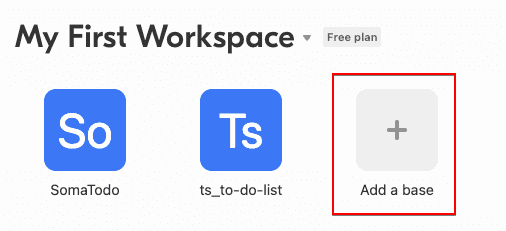
2️⃣ Workspace 만들기
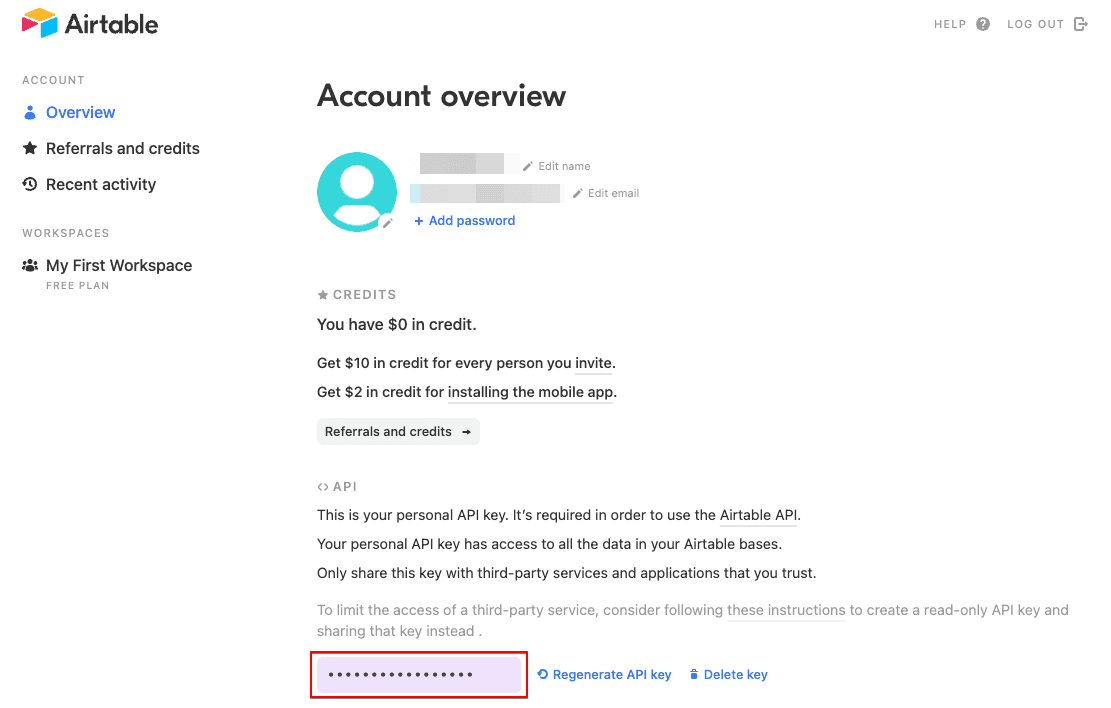
3️⃣ 계정정보에서 API Key 확인하기 ⇒ 나중에 사용 예정
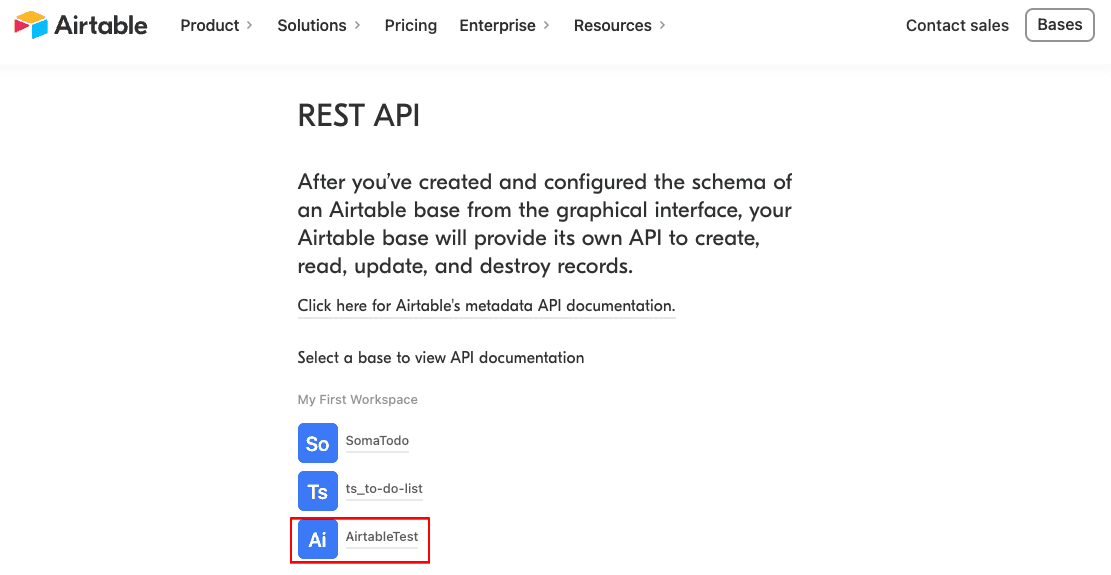
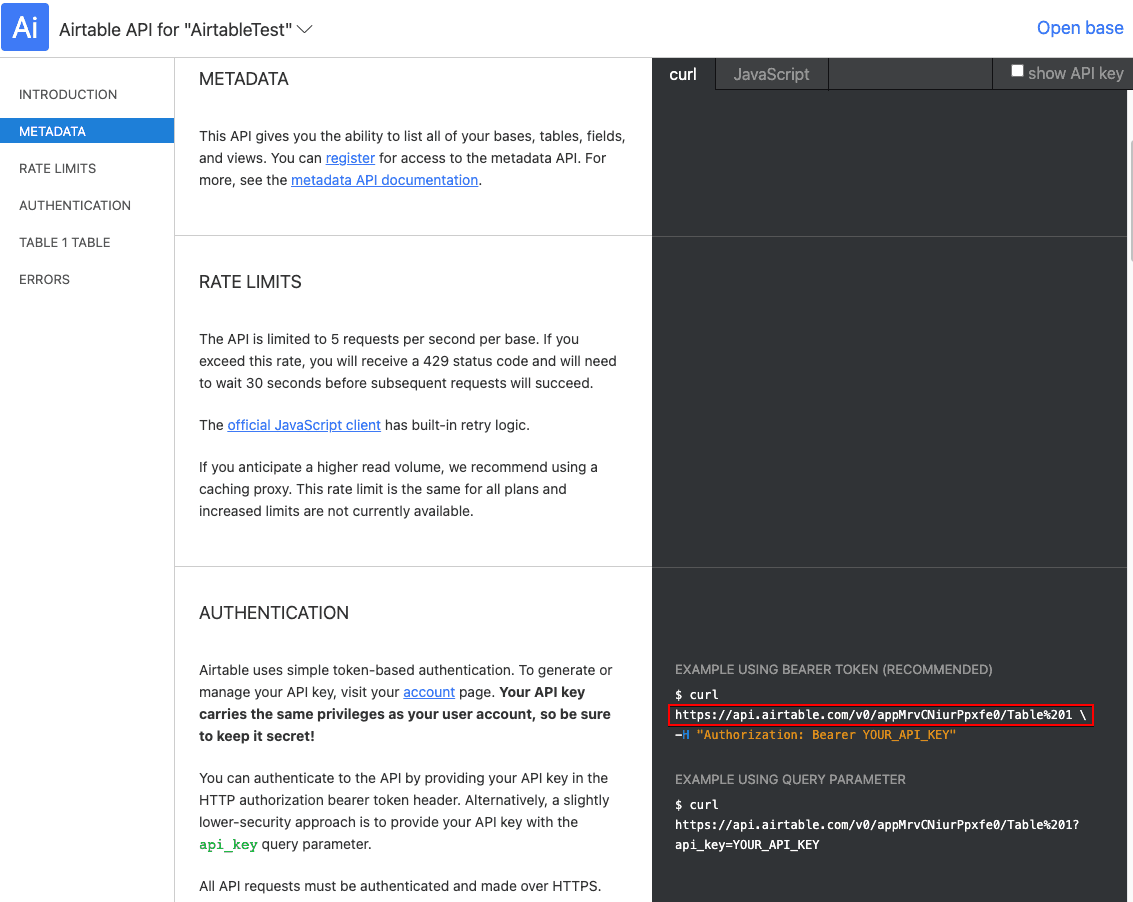
4️⃣ Airtable REST API에서 base url을 확인할 수 있다
CRUD
- CRUD 예제를 위해 간단한 TO DO LIST를 만들 예정이다
- Airtable에 TO DO를 저장하기 위해서
Name과Done이라는 field를 만든다.
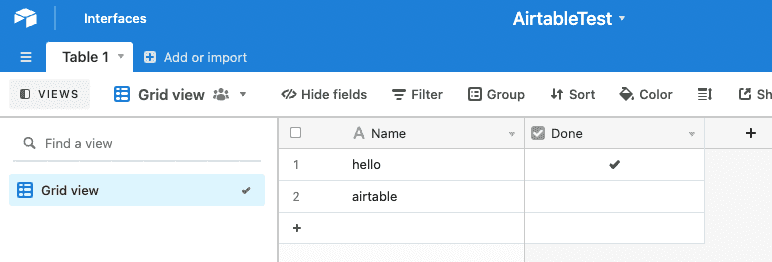
- Airtable에 저장된 TO DO들을 불러와서 읽고, Done의 내용을 업데이트하고, 삭제하고, 추가하는 기본적인 CRUD 작업을 할 수 있다. 물론 저기서 직접 추가, 삭제, 수정의 작업을 해도 반영되지만, 아마도 우리가 원하는 것은 리액트에서 그 작업을 하는 것이니 밑에서 확인해보자!
Airtable에 저장되는 데이터
TO DO를 만들기 위해서 먼저 Interface부터 입력하자면 다음과 같다. (TS 를 이용하지 않는다면 필요없다.)
- id와 createdTime은 Airtable에서 자동으로 생성하는 정보
- 우리가 Airtable에서 볼 수 있는 정보는 fields안에 object로 입력된다.
interface TodoInterface {
  id: string
  fields: { Done: boolean | undefined; Name: string }
  createdTime: string
}
REST API 사용을 위한 baseURL과 header 설정
const baseURL = "여기에 본인의 Airtable baseUrl을 입력해주세요"
const options = {
  headers: {
    Authorization: `Bearer ${process.env.REACT_APP_AIRTABLE_KEY}`,
    "Content-Type": "application/json",
  },
}- 위에서 확인한 baseURL과 API Key가 필요한 타이밍이다.
- 위에 baseURL에 적혀있는 URL은 내 Airtable의 URL이므로 본인의 baseURL을 입력해야 한다
- API Key는 개인정보이므로 가능한 Git에 올리지 않도록 환경변수로 설정하기
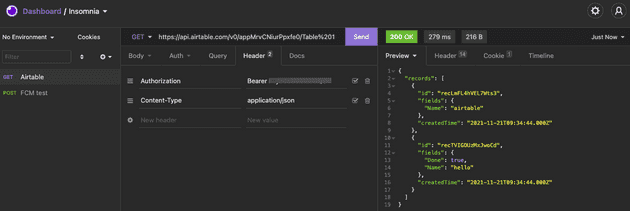
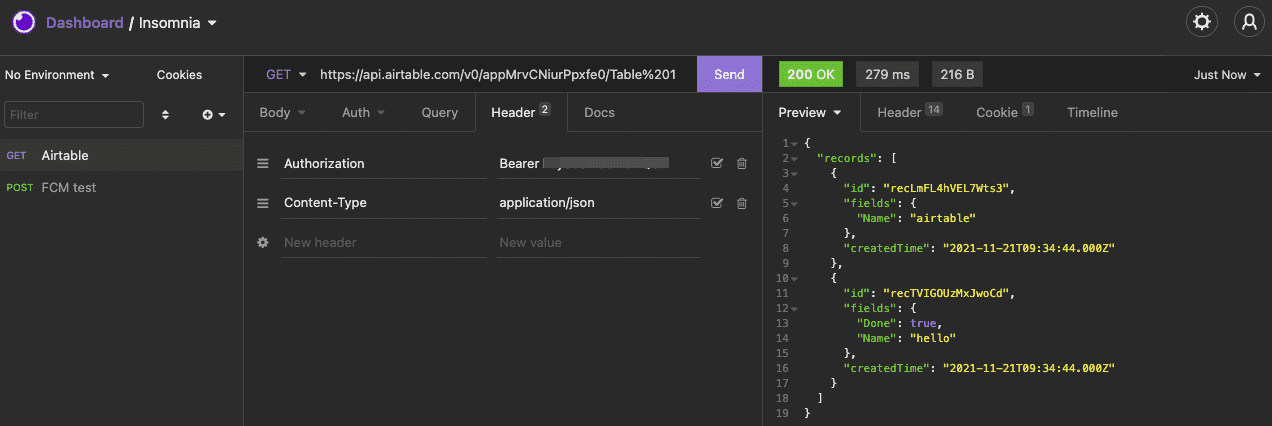
- API를 요청할 때 header에
Authorization: Bearer YOUR_API_KEY와Content-Type: application/json를 넣어줘야 한다.Insomnia를 통해 API 요청을 보내도 확인할 수 있는데, 아래와 같다
Create
TO DO를 생성해서 Airtable에 저장하기
const handleAddTodo = async () => {
  const name = inputRef.current?.value // 할일 이름인 name 값을 input에서 입력받기
  const newTodo = {
    fields: {
      Name: name,
      Done: false,
    },
  }
  name &&
    (await axios.post(
      baseURL,
      {
        records: [newTodo],
      },
      options
    ))
  handleRefresh() // TODO를 저장한 뒤 다시 읽어오기 위해서
  if (inputRef.current) inputRef.current.value = "" // 저장한 후에는 입력창을 빈칸으로
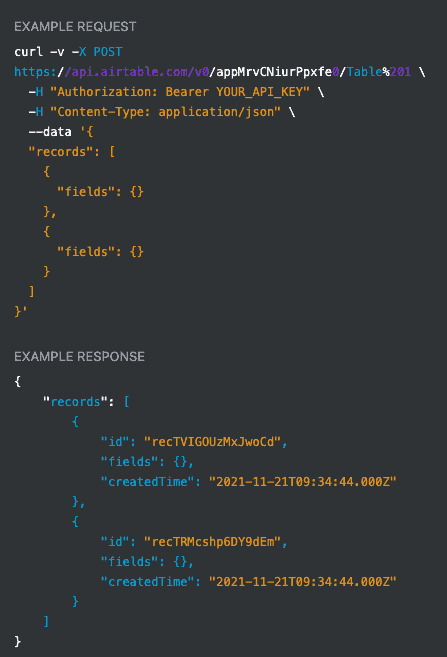
}- 투두리스트를 예시로 들다보니 실제로 필요한 코드보다 조금 길어지긴 했는데, 기본적인 개념은 다음과 같다. ⇒
post를 이용해서 추가하고자 하는 정보를 records에 배열로 담아서 보내면 된다. TO DO의 기본 정보인 id와 createdTime은 Airtable에 저장되면서 자동으로 생성된다. - 위 정보를 Airtable의 공식문서에서 찾아보면 다음과 같다.
Read
Airtable에 저장된 TO DO 불러오기
const handleRefresh = async () => {
  const response = await axios.get(baseURL, options)
  const records: TodoInterface[] = response.data.records
  setTodos(records) // 읽어온 데이터를 todos에 저장
  setLoading(false) // 데이터를 다 불러왔다면 로딩 종료
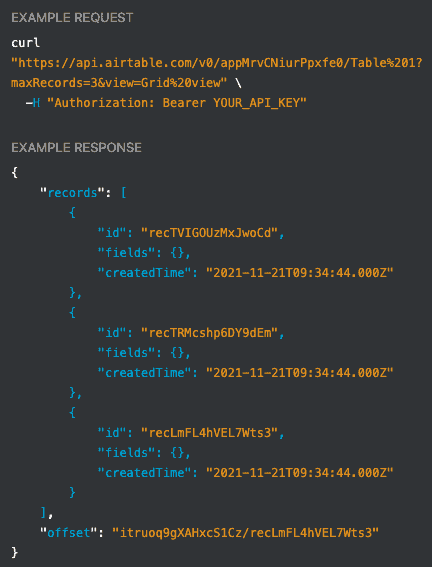
}- 데이터를 읽어오는 것은
get을 이용하면 된다. 데이터는 axios로 불러온 값의 data 안에 records 안에 배열로 확인할 수 있다. - 위 정보를 Airtable의 공식문서에서 찾아보면 다음과 같다.
Update
Airtable에 저장된 TO DO의 완료 상태값(Done) 변경
const handleUpdateTodo = async (todo: TodoInterface) => {
  const updatedTodo = produce(todo, nextTodo => {
    nextTodo.fields.Done = !todo.fields.Done
  })

  await axios.patch(
    `${baseURL}/${todo.id}`,
    {
      fields: updatedTodo.fields,
    },
    options
  )

  handleRefresh() // TODO를 업데이트한 뒤 다시 읽어오기 위해서
}- Create처럼 예제 때문에 코드가 조금 길어졌지만, Update의 핵심도
patch를 이용해서 fields 데이터만 전달해주면 된다. 데이터의 id는 baseURL 뒤에 넣어준다. - 참고로 TODO의 상태를 업데이트하기 위해서 immer(불변성을 유지하면서 업데이트하기 위한 라이브러리)를 이용했다. (위 코드에서는 immer를 produce 라는 이름으로 불러와서 사용하고 있다.)
Delete
Airtable에 저장된 TO DO 삭제
const handleDeleteTodo = async (todo: TodoInterface) => {
  await axios.delete(`${baseURL}/${todo.id}`, options)

  const newTodos = todos.filter(item => todo.id !== item.id)
  setTodos(newTodos)
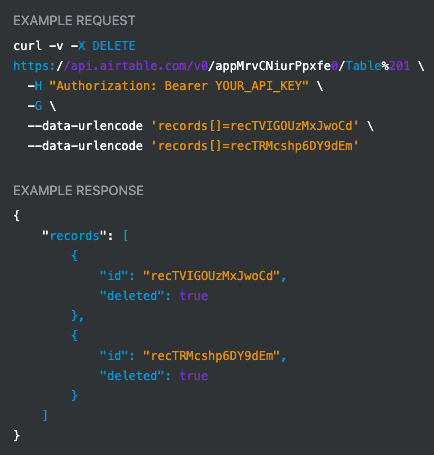
}- Delete는 Read처럼 간단하다.
delete를 이용해서 삭제하고자 하는 데이터의 id를 baseURL 뒤에 전달해주면 된다. - 위 정보를 Airtable의 공식문서에서 찾아보면 다음과 같다.
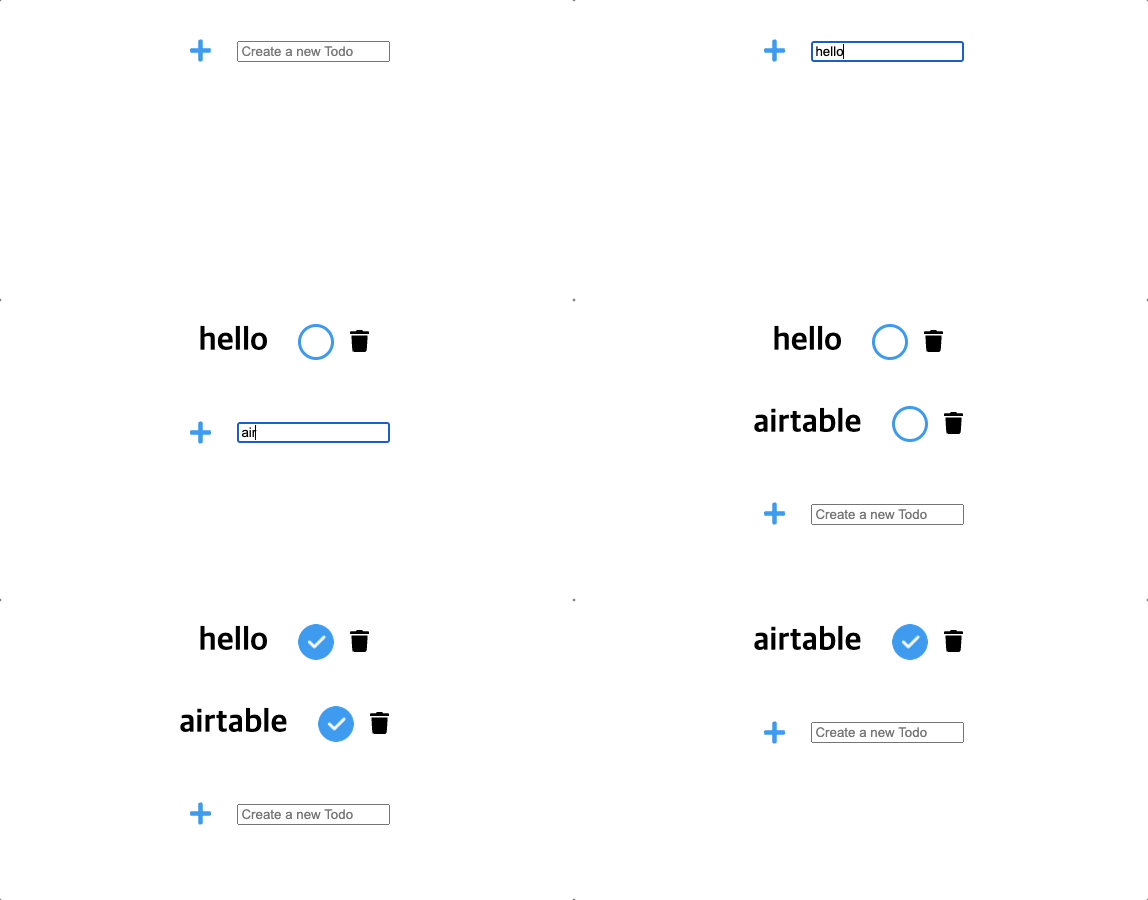
TO DO LIST (React + TypeScript + Airtable)
아래 코드를 실행하기 위한 세팅
npm i --save typescript @types/node @types/react @types/react-dom @types/jest
npm i styled-components
npm i --save-dev @types/styled-components
npm i @fortawesome/fontawesome-free
npm i axios
npm i --save immer
App.tsx
import { useEffect, useState, useCallback, useRef, KeyboardEvent } from "react"
import styled from "styled-components"
import axios from "axios"
import produce from "immer"

interface TodoInterface {
  id: string
  fields: { Done: boolean | undefined; Name: string }
  createdTime: string
}

function App() {
  const baseURL = "여기에 본인의 Airtable baseUrl을 입력해주세요"
  const options = {
    headers: {
      Authorization: `Bearer ${process.env.REACT_APP_AIRTABLE_KEY}`,
      "Content-Type": "application/json",
    },
  }
  const [todos, setTodos] = useState<TodoInterface[]>([])
  const [loading, setLoading] = useState<boolean>(true)
  const inputRef = useRef<HTMLInputElement>(null)

  const handleRefresh = useCallback(async () => {
    const response = await axios.get(baseURL, options)
    const records: TodoInterface[] = response.data.records
    setTodos(records)
    setLoading(false)
  }, [])

  useEffect(() => {
    handleRefresh()
  }, [handleRefresh])

  const handleUpdateTodo = async (todo: TodoInterface) => {
    const updatedTodo = produce(todo, nextTodo => {
      nextTodo.fields.Done = !todo.fields.Done
    })

    await axios.patch(
      `${baseURL}/${todo.id}`,
      {
        fields: updatedTodo.fields,
      },
      options
    )
    handleRefresh()
  }

  const handleDeleteTodo = async (todo: TodoInterface) => {
    await axios.delete(`${baseURL}/${todo.id}`, options)

    const newTodos = todos.filter(item => todo.id !== item.id)
    setTodos(newTodos)
  }

  const handleAddTodo = async () => {
    const name = inputRef.current?.value
    const newTodo = {
      fields: {
        Name: name,
        Done: false,
      },
    }
    name &&
      (await axios.post(
        baseURL,
        {
          records: [newTodo],
        },
        options
      ))

    if (inputRef.current) inputRef.current.value = ""
    handleRefresh()
  }

  const onKeyDown = (e: KeyboardEvent<HTMLInputElement>): void => {
    if (e.key === "Enter") handleAddTodo()
  }

  return (
    <>
      {loading ? (
        <Loader>Loading...</Loader>
      ) : (
        <Container>
          {todos.map(todo => (
            <TodoBox key={todo.id}>
              <h1>{todo.fields.Name}</h1>
              {todo.fields.Done ? (
                <BtnCheckDone
                  onClick={() => {
                    handleUpdateTodo(todo)
                  }}
                />
              ) : (
                <BtnCheck
                  onClick={() => {
                    handleUpdateTodo(todo)
                  }}
                />
              )}
              <BtnDelete
                onClick={() => {
                  handleDeleteTodo(todo)
                }}
              >
                <i className="fas fa-trash"></i>
              </BtnDelete>
            </TodoBox>
          ))}
          <AddForm>
            <AddBtn onClick={handleAddTodo}>
              <i className="fas fa-plus"></i>
            </AddBtn>
            <input
              ref={inputRef}
              type="text"
              placeholder="Create a new Todo"
              onKeyDown={onKeyDown}
            />
          </AddForm>
        </Container>
      )}
    </>
  )
}

const Loader = styled.span`
  text-align: center;
  display: block;
`

const Container = styled.div`
  display: flex;
  flex-direction: column;
  justify-content: center;
  align-items: center;
`

const TodoBox = styled.div`
  display: flex;
  justify-content: center;
  align-items: center;
`

const BtnCheck = styled.div`
  margin-left: 30px;
  width: 30px;
  height: 30px;
  border: 3px solid #2096f3;
  border-radius: 50%;
`

const BtnCheckDone = styled(BtnCheck)`
  width: 36px;
  height: 36px;
  border: none;
  background-image: url("/check.png");
  background-repeat: no-repeat;
  background-size: cover;
  background-position: center center;
`

const BtnCss = styled.button`
  background-color: transparent;
  border: 0;
`

const BtnDelete = styled(BtnCss)`
  font-size: 22px;
  background-color: transparent;
  border: 0;
  margin-left: 10px;
`

const AddForm = styled.div`
  height: 100px;
  background-color: white;
  display: flex;
  align-items: center;
`
const AddBtn = styled(BtnCss)`
  color: #2096f3;
  margin-right: 20px;
  font-size: 25px;
`

export default App